
USB Device Hierarchy
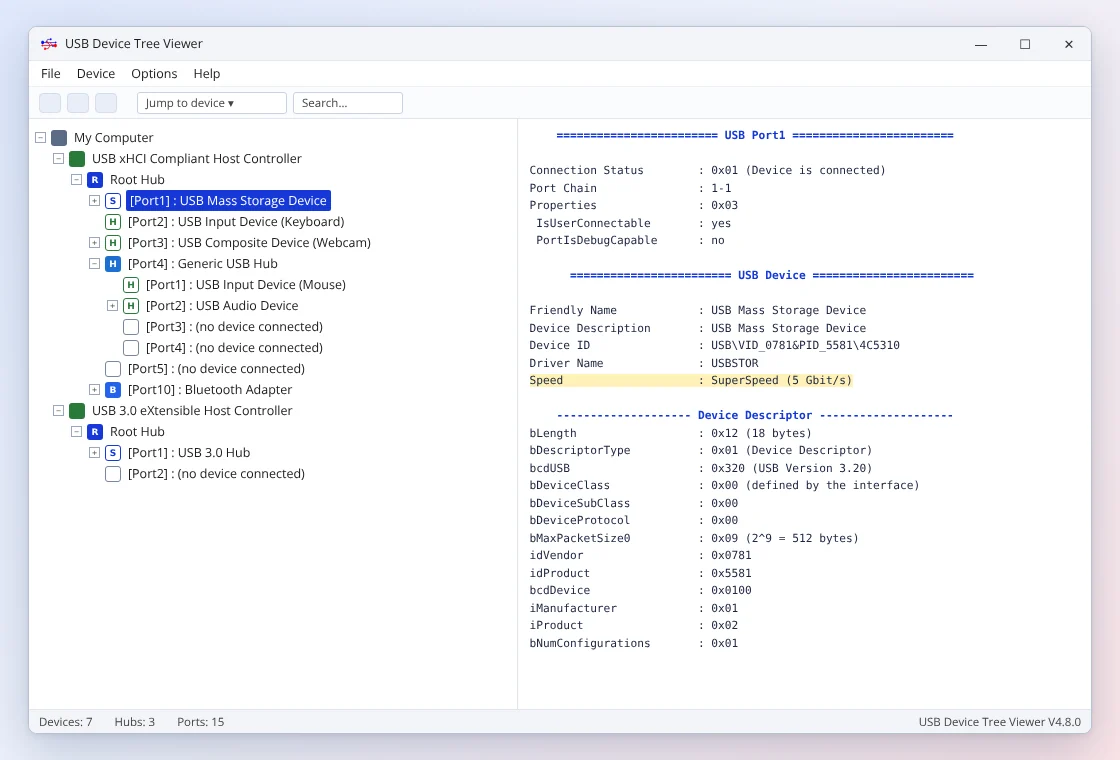
Controllers, root hubs, external hubs and devices appear in the order they are physically connected, so you can follow the path from your PC to any accessory at a glance.
UsbTreeView lets you take a closer look at your USB ports, connected devices and hardware configuration with a lightweight Windows utility. It maps every host controller, hub and port in a clear tree, then shows descriptors, connection speed and power details for the device you select. Uwe Sieber's freeware runs straight from a ZIP archive, so you can inspect a stubborn webcam, a slow flash drive or an unknown accessory without installing anything.
Software at a Glance
UsbTreeView is a Windows utility that provides a detailed overview of USB devices, ports, hubs and controllers connected to your computer.
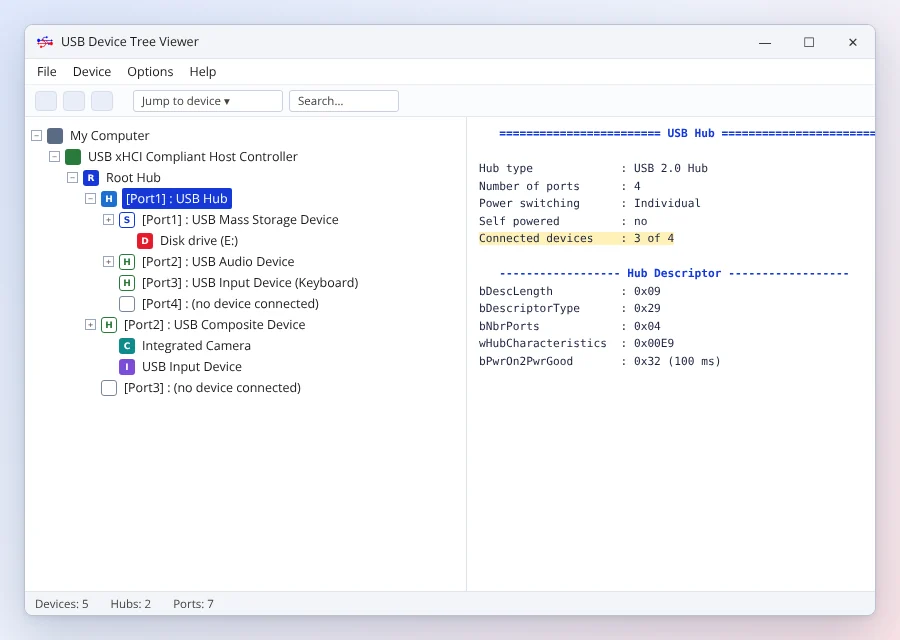
UsbTreeView, also published as USB Device Tree Viewer, is a free Windows utility by the German developer Uwe Sieber that presents every USB controller, hub, port and device in one organised tree. It started from the source code of USBView, the sample application Microsoft shipped with the Windows Driver Kit for Server 2003, and has grown far beyond it over many releases.
Device Manager scatters USB hardware across categories; UsbTreeView shows exactly which physical port each device occupies and how it reaches the host controller.
Selecting any node reveals decoded descriptors, negotiated speed, power requests, drive letters and COM ports. That matters whenever a device behaves oddly, runs slower than expected or appears with an unfamiliar name, because you can read the facts instead of guessing.
A focused set of tools to explore, analyse and understand your USB connections, each one built to answer a practical question about the hardware in front of you.
Controllers, root hubs, external hubs and devices appear in the order they are physically connected, so you can follow the path from your PC to any accessory at a glance.
Device, configuration, interface and endpoint descriptors are decoded into readable fields, with an optional hexdump whenever you need the raw bytes behind each value.
Port icons marked H or S flag High-Speed and SuperSpeed links, while the details pane compares what a device supports with the speed it actually negotiated.
The tree refreshes when hardware is plugged in or removed and keeps your selection in place, which makes devices that drop out and reconnect easy to catch.
Empty ports, hub characteristics, port chains and connector properties are listed, so you know which sockets are free and which hub feeds which device.
Every release ships as a small ZIP archive. Extract it, run UsbTreeView.exe and keep the folder on a USB stick for use on any compatible Windows PC.
UsbTreeView builds its picture of your USB system from information Windows already holds, without installing drivers or background services.
It queries Windows device management and the USB host controller interfaces, collecting the same data drivers receive when a device is enumerated.
Each host controller and root hub is located first, then every port is asked whether a device is attached and how it is connected.
Devices are matched with their Windows child entries, such as disk volumes and COM ports, and placed under the exact hub port they use.
String descriptors and other details are requested when you select a device, which keeps the tree quick to build even on busy systems.
Each device in the tree opens a detailed report. The terms can look technical at first, so here is what the main categories mean in everyday language.
| Information Type | What It Shows |
|---|---|
| Device identifiers | Vendor ID (VID) and Product ID (PID), the hexadecimal codes manufacturers register to label each product, such as 0x0781. |
| USB descriptors | Device, configuration, interface and endpoint details that describe what the hardware is and how it talks to Windows. |
| Connection speed | Low-, Full-, High-, SuperSpeed and faster modes, together with the USB version the device reports. |
| Power information | The maximum current a device requests from the bus, shown in milliamps, and whether it is bus-powered or self-powered. |
| Port status | Whether each port is connected, empty, user-accessible or reporting a failure while the device was being enumerated. |
| Hardware hierarchy | The complete chain from host controller through root hub and external hubs to each device and its Windows child devices. |
The window is split into two panes beneath a compact menu and toolbar. Beginners usually need only these three areas to answer most questions about a connected device.
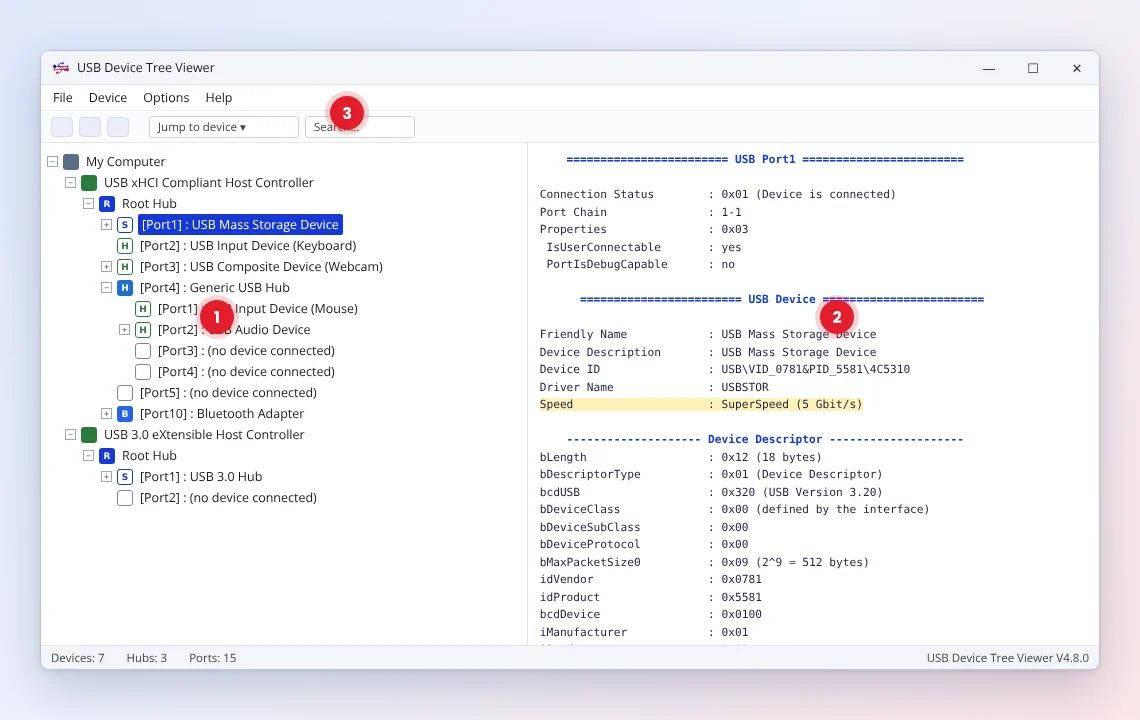
Navigate USB connections. Expand controllers and hubs to find the port a device uses; icons flag speed and problems.
Read hardware information. Descriptors, speed, power and driver details appear here, ready to copy.
Access available commands, including refresh, search, jump lists, dark mode and XML report export.
Each scenario starts with a common symptom and shows what UsbTreeView reveals about it, giving you evidence to act on rather than an automatic repair.
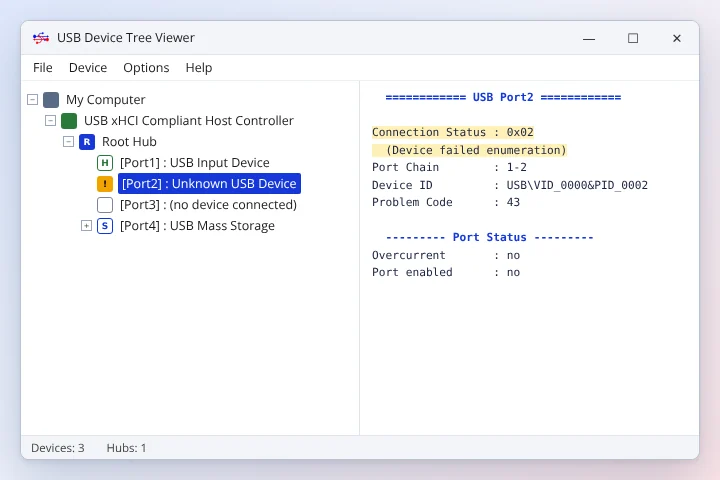
A device keeps disconnecting or appears as unknown.
How it helps: Locate its port, check the connection status and see whether enumeration failed. UsbTreeView reports what Windows sees; the fix, whether a cable, hub or driver, stays your decision.
Copies to an external drive crawl along.
How it helps: Compare the maximum speed with the current speed. A SuperSpeed drive running at High-Speed usually points to a USB 2.0 port, hub or cable somewhere in the chain.
Docks and hubs make it unclear what is plugged in where.
How it helps: Follow the port chain from the host controller through every hub, and spot hubs that are bus-powered or almost out of free ports.
Device Manager only lists a generic, nameless entry.
How it helps: Read the vendor and product IDs plus any string descriptors the device supplies, then use them to find the manufacturer or the correct driver.
Different people open UsbTreeView for different reasons, and the same device tree serves each of them well.
Confirm which port a user's device occupies, save an XML report and compare machines without installing anything.
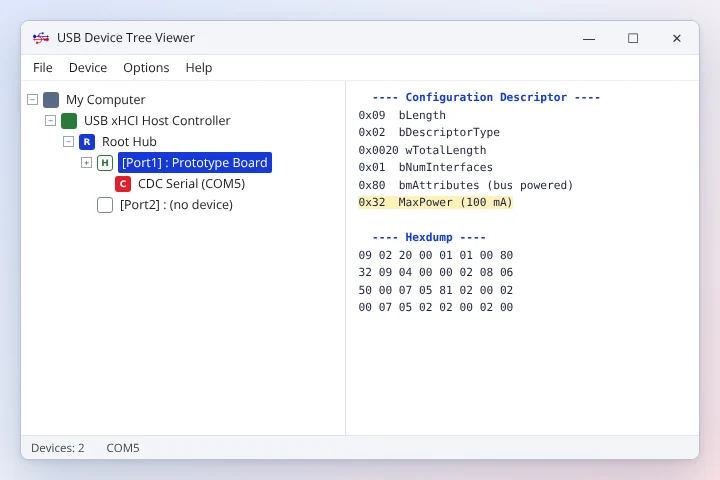
Check that descriptors, power requests and endpoints from new firmware match the design before further testing.
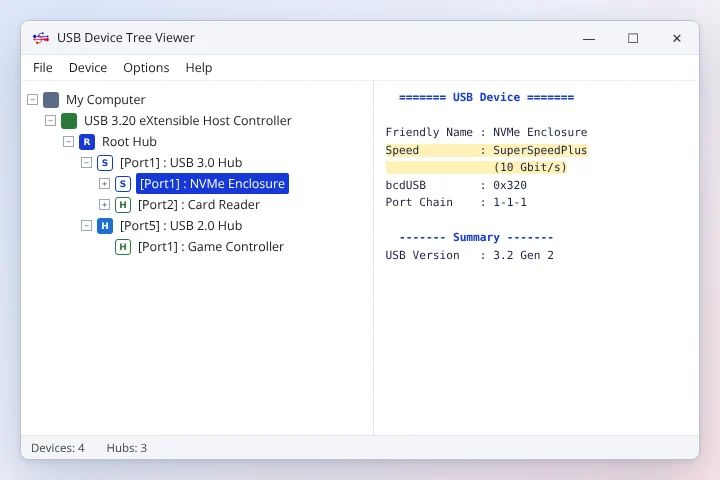
See which motherboard and front-panel ports offer SuperSpeed and how internal hubs are wired together.
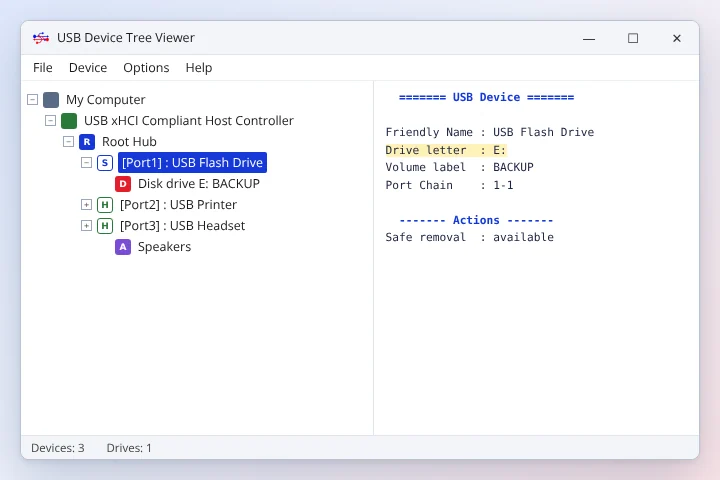
Find a flash drive's letter, check whether a cable slows a transfer, or remove a device safely.
Both tools read the same Windows device information, yet they are built for different jobs and work best side by side.
| Capability | UsbTreeView | Device Manager |
|---|---|---|
| USB-focused interface | Yes | Limited |
| Detailed USB descriptors | Yes | Limited |
| USB connection hierarchy | Dedicated view | Available |
| General hardware management | Limited | Yes |
| Driver management | Not its primary purpose | Yes |
| Built into Windows | No | Yes |
Device Manager is the place to update, roll back or disable drivers and to manage every class of hardware in the PC.
UsbTreeView concentrates on USB alone and goes deeper, decoding descriptors, speeds and port relationships that Device Manager only hints at. Most technicians keep both: Device Manager to act on a driver, UsbTreeView to understand what the USB device itself reports.
UsbTreeView asks very little of a computer. These details come from the developer's own download page.
Current releases run on Windows 8, 8.1, 10 and 11. Version 4.6.4 remains available for Windows XP to 7, and 4.4.4 for Windows 2000.
Separate builds are offered for x64, 32-bit (Win32) and ARM64 editions of Windows.
Each ZIP archive is roughly half a megabyte, and nothing beyond the extracted files is written during setup.
USB 1.1, 2.0 and USB 3.x devices are decoded in detail; USB4 and Thunderbolt information is partial, with experimental extra detail on Windows 11.
Choose the appropriate release for your Windows system.
Getting started takes about a minute and needs no installer. Follow these steps to go from download to your first device report.
Open the developer's UsbTreeView page and choose the ZIP that matches your Windows edition: x64 for most modern PCs, Win32 for 32-bit systems or arm64 for Windows on ARM.
Right-click the archive, choose Extract All and pick a folder you can find again, such as C:\Tools\UsbTreeView or a folder on a USB stick.
Double-click UsbTreeView.exe. Windows may ask for confirmation the first time because the file came from the internet.
Expand the host controllers in the left pane and click a device, port or hub. The jump list and search box help on systems with many devices.
Read the details pane for speed, descriptors and power data, then copy the text or save an XML report if you need to share what you found.
Uwe Sieber updates UsbTreeView regularly and documents every change. The details below come from the developer's history page; newer builds may appear after this page was written.
Adds optional experimental USB4 information on Windows 11 and lets you rename USB ports, building on the fixes delivered across the 4.7 series.
Download Latest ReleaseClear answers to the questions people ask most often about downloading, running and understanding UsbTreeView.